



How to insert YouTube video into PowerPoint
YouTube, well-known to all, is the most famous video sharing website in the world. Every time you open the YouTube, you may find lots of video which are exciting, interesting and intellective. When create a PowerPoint presentation for teaching, business and family use, you may want to insert a YouTube video into your PowerPoint presentation to make it more vivid, but as we know, YouTube video is the FLV format and we cannot insert YouTube video into PowerPoint presentation directly. How can we insert YouTube video into PowerPoint?
There are many ways for you to insert the YouTube video into PowerPoint. Here I just list 3 ways for those who are using Windows and Mac.
For Windows User
The first way is insert the YouTube video to the PowerPoint with Internet connected. Follow the steps to embed the YouTube video into PowerPoint.
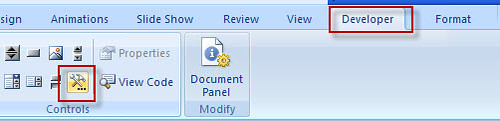
Open the PowerPoint, find the developer tab, click more controls button, then there will be a dialog appeared. If you cannot find the developer menu, it is easy. Just click the office button, PowerPoint options, and select Show Developer tab on the Ribbon then the developer tab will appear on the ribbon.
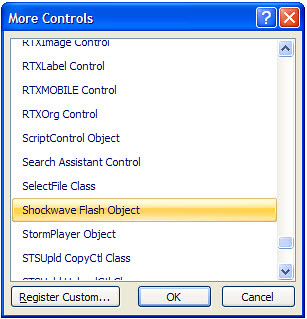
In this dialog, choose Shockwave Flash Object then OK.
Draw a box on the slide which you want to insert the YouTube video into, then right click the rectangle, choose properties then the dialog is shown as below:
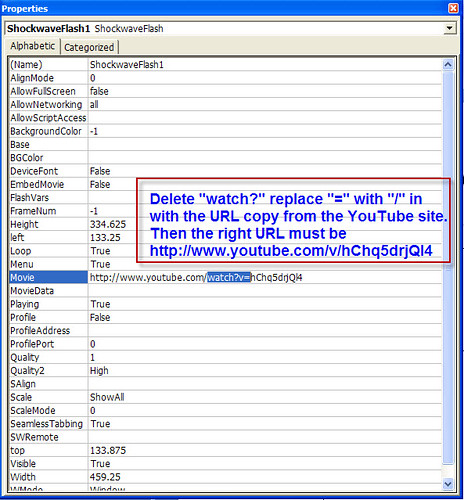
Remember, only have a live Internet connection you can play your YouTube video in PowerPoint.
Sometimes may be the Internet is not available for us. In that case we should download the YouTube video to our computer, convert the YouTube video file (FLV file) to other format like MPEG, AVI, WMV, etc that PowerPoint can accept. Thus we no longer depend on the live Internet connection. OK, here, I want to tell you the second way to do this.
Before you can download a video, you must install a capture/converter program. Here's how:
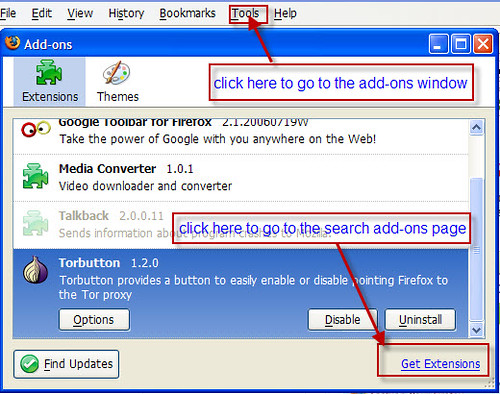
Open your Firefox, choose add-on in the tools menu. Click on the get add-ons tab, in the search box type media converter, this tool is totally free. Install the media converter then restart Firefox.
OK, now you'll see a new icon that looks like a bird next to the web address field.
From now on, all you have to do is go to the page which you can view the YouTube video, click the media converter icon (the bird icon), choose the right format you want to convert, click next, OK, the video is successfully downloaded and converted.

I think insert a common video into PowerPoint will not be difficult for you.
You may try another tools like YouTube downloader, can easily download and convert the YouTube video. You just need to paste the YouTube video URL into the YouTube downloader and select the output video format, everything is OK.
For Mac user
The two methods above are for the Windows PC, now, how to insert YouTube video into PowerPoint on Mac with PowerPoint 2008?
Download the YouTube video and convert it to the right format with Firefox and Media converter first. In PowerPoint, turn on the Movie toolbar by using the VIEW menu. From the VIEW menu choose the submenu TOOLBARS and then MOVIE.
The first button on the toolbar is INSERT MOVIE. Click it.
Select the movie in the dialog box, then click the CHOOSE button.